How to Install the 99exch App: Step‑By‑Step Guide for Android & iOS Users
Introduction
The rapid growth of digital trading platforms has made mobile applications an essential tool for investors, traders, and crypto enthusiasts. Among the emerging solutions, the 99exch official platform stands out for its intuitive interface, robust security features, and a wide range of tradable assets. Whether you are a seasoned trader looking for a reliable on‑the‑go solution or a newcomer eager to explore the world of digital exchanges, installing the 99exch app correctly is the first decisive step toward a seamless trading experience.
Prerequisites Before You Begin
Before diving into the installation process, ensure that your device meets the minimum system requirements. Both Android and iOS versions of the app are optimized for the latest operating systems, but they also support several previous releases:
- Android: Android 6.0 (Marshmallow) or later; at least 2 GB RAM; 100 MB of free storage for the app plus additional space for cache and data.
- iOS: iOS 12.0 or later; iPhone 6s or newer; at least 150 MB of free storage.
In addition, a stable internet connection (Wi‑Fi or 4G/5G) is crucial for downloading the installer and for the initial synchronization of market data.
Downloading the 99exch App for Android
1. Locate the Official APK
The most reliable source for the Android installer is the official website. Navigate to the download section and select the version that matches your device architecture (ARM64 or x86). Avoid third‑party sites, as they may host tampered files.
2. Enable Installation From Unknown Sources
Android devices block the installation of apps from outside the Google Play Store by default. To proceed:
- Open Settings → Security (or Privacy on newer versions).
- Toggle Install unknown apps for your browser or file manager.
- Confirm the warning prompt. This setting can be reverted after installation for added security.
3. Install the APK
Once the file is downloaded:
- Tap the notification or locate the file in your Downloads folder.
- Press Install. The system will verify the package signature.
- When the installation completes, tap Open to launch the app.
Downloading the 99exch App for iOS
1. Access the App Store
Apple’s ecosystem only permits installations from the official App Store, which guarantees the authenticity of the binary. Open the App Store app on your iPhone or iPad.
2. Search for “99exch”
Enter the keyword in the search bar. Verify that the developer name matches “99exch Ltd.” and that the app icon matches the branding displayed on the website.
3. Install the App
Tap the Get button, authenticate with Face ID, Touch ID, or your Apple ID password, and wait for the download to finish. The app will appear on your home screen automatically.
First‑Time Launch: Configuring the App
1. Accept Permissions
On first launch, the app will request access to your device’s camera (for QR code scanning), microphone (for voice verification), and location (optional, for localized market data). Grant only the permissions you are comfortable with; the core trading features operate without location data.
2. Secure Your Account
The platform emphasizes security through two‑factor authentication (2FA). After entering your mobile number or email, you will receive a one‑time password (OTP). Follow the prompt to set up a 2FA method—either an authenticator app (recommended) or SMS‑based codes.
3. Create or Access Your Account
If you already have a 99exch account, select the login option and proceed with your credentials. New users can start the registration process directly from the app. For a comprehensive guide on creating an account, visit the 99exch official register page.
Logging In: Step‑By‑Step
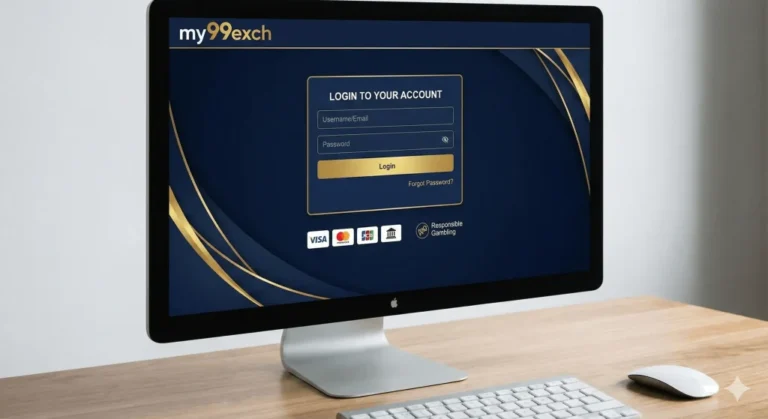
To begin trading, you must authenticate using the official login portal. The process is straightforward:
- Open the app and tap Login.
- Enter your registered email address or mobile number.
- Input the password you set during registration.
- Complete the 2FA challenge (e.g., enter the code from your authenticator app).
- Tap Submit. Upon successful verification, you will be directed to the dashboard.
For a direct link to the web‑based login, use the 99exch official login page.
Exploring the Dashboard
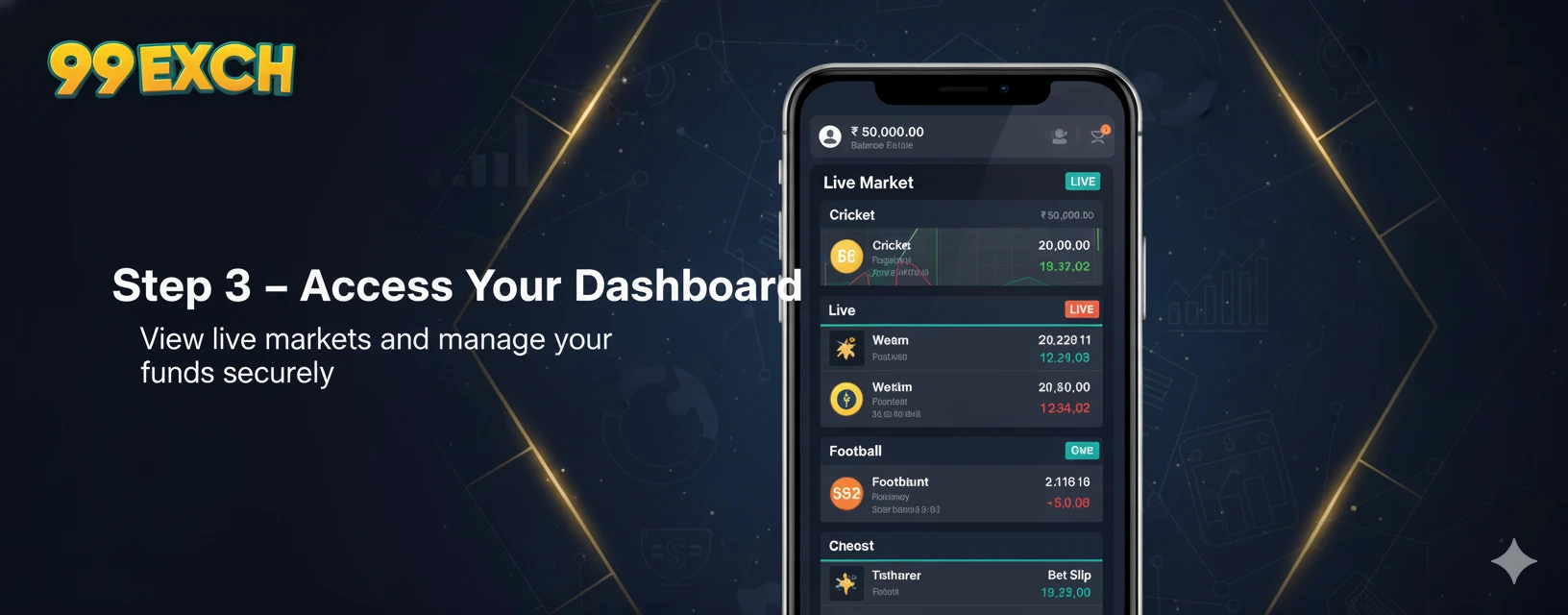
Once logged in, the dashboard provides a snapshot of your portfolio, real‑time price tickers, and quick‑access buttons for buying, selling, and transferring assets. Key components include:
- Balance Overview: Shows fiat and crypto holdings in your preferred currency.
- Market Watchlist: Customizable list of assets you follow.
- Trade Panel: Immediate access to market orders, limit orders, and stop‑loss settings.
- Newsfeed: Integrated news from reputable sources that affect market movements.
Advanced Settings & Personalization
1. Notification Preferences
Navigate to Settings → Notifications to configure alerts for price changes, order execution, and security events. Push notifications can be tailored to specific assets or thresholds.
2. Theme & Layout
The app supports both light and dark themes, which can be toggled manually or set to follow the device’s system settings. Adjust the layout density (compact, standard, or spacious) to suit your visual preference.
3. API Keys (For Professional Traders)
Developers and algorithmic traders can generate API keys from the Security tab. Ensure you enable only the required permissions (read‑only, trade, or withdrawal) and store the secret key securely offline.
Troubleshooting Common Installation Issues
Issue 1: “App Not Installed” on Android
This message often appears when the APK is corrupted or when the device lacks sufficient storage. Verify the checksum of the downloaded file (available on the official site) and clear additional space before retrying.
Issue 2: “App Cannot Be Opened” on iOS
If the app crashes immediately after launch, ensure that your iOS version meets the minimum requirement and that the device has at least 150 MB of free storage. Deleting and reinstalling the app frequently resolves transient glitches.
Issue 3: Verification Email Not Received
Check your spam or promotional folders. Whitelist the domain @99exch.ind.in to improve deliverability. If the problem persists, use the “Resend Code” option or contact support through the in‑app chat.
Security Best Practices After Installation
Installing the app is only the first layer of protection. To safeguard your funds:
- Enable biometric authentication (fingerprint or Face ID) in addition to passwords.
- Regularly update the app to the latest version, which includes critical security patches.
- Do not share your OTP or 2FA codes with anyone, including “support” agents who request them.
- Use a strong, unique password and consider a password manager for storage.
- Monitor login activity from the Security section and report any unfamiliar sessions.
Conclusion
Installing the 99exch app is a straightforward process that unlocks a powerful suite of trading tools on your mobile device. By following the step‑by‑step instructions for Android or iOS, configuring essential security settings, and adhering to best‑practice guidelines, you can enjoy a smooth, secure, and responsive trading experience. Whether you are registering a new account or logging in to an existing one, the platform’s intuitive design ensures that you spend less time navigating and more time capitalizing on market opportunities. Start today, explore the features, and join the growing community of traders who rely on 99exch for their digital asset needs.